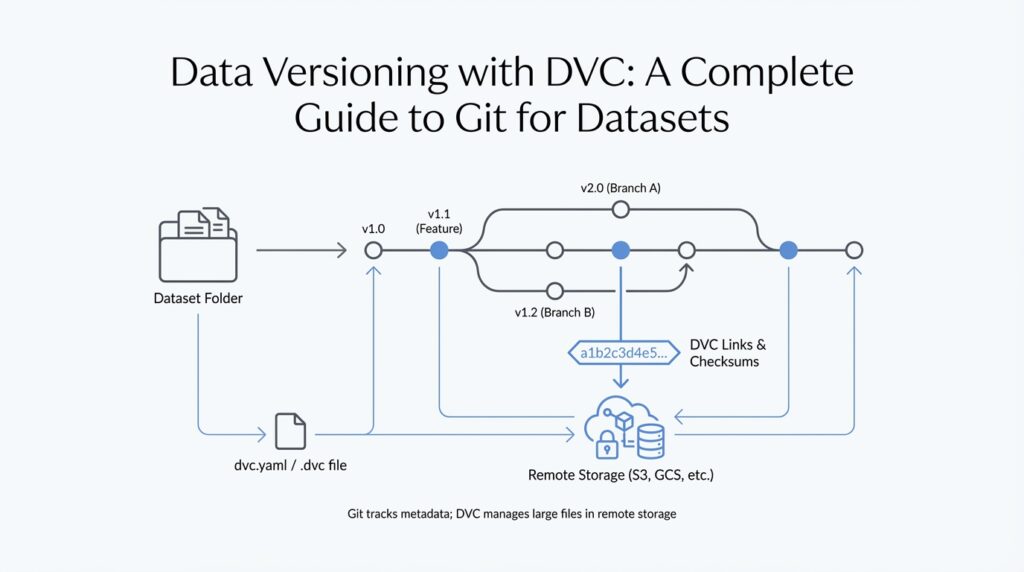
What DVC Does
Building on this foundation, DVC steps in when a project stops being a neat folder of scripts and starts behaving like a living system of data, code, and results. If you have ever wondered, “How do you keep a dataset in sync without stuffing the raw files into Git?”, that is the problem DVC is built to solve. It is an open-source tool for data management, machine learning pipeline automation, and experiment management, so you can handle large datasets while still keeping your work reproducible. (dvc.org)
The key idea is that DVC does not replace Git; it works alongside it. Git, the version control system that tracks changes in code, stores DVC’s small, human-readable metadata files such as .dvc and dvc.yaml, while the heavy data itself lives outside the repository in a cache and remote storage. Think of Git as the notebook that records what changed, and DVC as the system that keeps the bulky ingredients in the pantry while leaving a recipe card in the kitchen. That split is what makes data versioning with DVC practical instead of painful. (dvc.org)
Once that clicks, the next part feels much more natural. When your dataset changes, DVC can capture a new snapshot, and later you can restore an earlier version without guessing which file name meant what. Instead of manually creating folders like final_final_v3, you commit the metadata to Git, push the actual data to a remote, and let DVC reconnect your workspace to the right version when you need it. In other words, DVC gives you a clean history for data versioning with DVC, not just a pile of copies. (dvc.org)
Taking this concept further, DVC also helps you describe the steps that turn raw data into features, models, and evaluation results. These steps live in pipeline files, and DVC can reproduce them by checking dependencies and running only the parts that actually need to change. That means if one input changes, you do not have to rerun the entire process from the beginning. It is a little like a smart kitchen that knows which dish depends on which ingredient, so you only recook what was affected. (dvc.org)
This is where DVC becomes especially useful for teams. Because it keeps data, code, parameters, metrics, and outputs connected, you can compare experiments more clearly, audit changes more confidently, and collaborate without losing track of which model came from which dataset. DVC also supports reusing tracked artifacts across projects through remotes, so the same dataset or model version does not need to be copied everywhere by hand. For a beginner, that may sound like a lot of moving pieces, but the goal is simple: keep the story of your project intact as it grows. (dvc.org)
With that picture in place, the next step is to see how those metadata files, remotes, and pipeline definitions fit together inside a real DVC project. (dvc.org)
Install DVC and Initialize Repo
Building on this foundation, the first practical move is to get DVC onto your machine and place it beside Git, not instead of it. DVC depends on Git for its main workflow, so if Git is missing, the setup never really gets off the ground. If you are wondering, “How do you install DVC and initialize a repo for data versioning with DVC?”, start by choosing an installation method that matches your environment and then checking the result with dvc version. On macOS, for example, DVC documents installation through Homebrew or pip, and it recommends using a virtual environment or pipx when you install with Python tools so your local setup stays isolated and tidy. (dvc.org)
That small environment choice matters more than it seems. A virtual environment is just an isolated Python workspace, which means the packages for this project do not spill into every other Python project on your computer. Think of it like giving DVC its own desk instead of asking it to share the entire office. For beginners, that extra boundary makes data versioning with DVC feel calmer, because you are less likely to run into confusing package conflicts before you even start working with data. (dvc.org)
Once DVC is installed, we can move into the project folder and prepare the repository itself. DVC works best inside a Git repository, and the standard dvc init command expects to run at the Git root, which means you should usually create or enter a Git repo first with git init. When you run dvc init, DVC creates a hidden .dvc/ directory that stores internal configuration and support files such as .dvc/config and .dvc/.gitignore, and those files are staged so Git can track them like any other part of the project. In other words, Git keeps the history, while DVC quietly sets up the control room behind the scenes. (dvc.org)
That first initialization is the moment your folder becomes a real DVC project rather than just a regular directory with data in it. A quick git status should show the new DVC files, and then a commit locks in that starting point so everyone else can reproduce the same project state later. This is a small step, but it is the one that makes the rest of data versioning with DVC feel grounded: you now have a Git-backed project where metadata, configuration, and code can travel together, while the large data files stay under DVC’s control. (dvc.org)
There are also two special paths worth knowing about, even if you do not need them right away. If your work lives inside a larger monorepo, dvc init --subdir lets you initialize DVC in a subdirectory while still looking upward for the Git root, which keeps one project from bleeding into another. If you are working outside Git entirely, dvc init --no-scm creates a DVC project detached from Git, but DVC notes that versioning features tied to Git history are no longer available in that mode. For most newcomers, the standard Git-backed setup is the clearest path, and these alternate modes are best saved for monorepos or unusual workflows. (dvc.org)
Track Datasets with dvc add
Building on that setup, dvc add is the moment where your raw dataset stops being an ordinary folder and becomes something DVC can remember. When you run it on a file or directory, DVC creates a lightweight .dvc file that records where the data lives and how to identify it later, while the heavy data itself stays under DVC’s cache instead of bloating Git. In practice, Git keeps the small tracking file, and DVC keeps the large content organized behind the scenes. That is the core move that makes data versioning with DVC feel manageable instead of messy. (dvc.org)
So what does that look like when you point it at a real dataset? Imagine you have a folder full of training images or a CSV file that keeps changing as you clean it. dvc add will track that target and, for a directory, it creates one .dvc file for the whole dataset rather than one file per item inside it. DVC also stores directory contents through a special cached .dir entry, which is basically a compact map of what the folder contains. That design keeps the history tidy, because you are versioning the dataset as one meaningful unit instead of dozens or thousands of separate pieces. (dvc.org)
A typical first run feels small, but it carries a lot of meaning. You might run something like dvc add data/raw/customers.csv, and DVC will create customers.csv.dvc beside the file while also updating the project so Git ignores the raw data itself. After that, you commit the new .dvc file with Git, not the data file, because the .dvc file is the receipt that lets DVC reconstruct the exact version later. If you change the dataset and run dvc add again, DVC updates that receipt so the new snapshot becomes part of your project history. That is why tracking datasets with dvc add feels less like copying files and more like recording a clean, durable trail. (dvc.org)
There are also a few options that make the command easier to fit into real projects. If you do not want DVC to store the data in the cache right away, --no-commit creates the .dvc file first and lets you finish the job later with dvc commit. That can be useful when you are preparing a large dataset and want to separate tracking from the heavier storage step. DVC also supports .dvcignore so you can exclude files or subfolders you do not want to accidentally add, which is a quiet but helpful safeguard when a directory contains temporary exports, logs, or scratch files. (dvc.org)
If you are wondering how people keep from tripping over their own data folders, that is where the command’s small safety rails matter. dvc add can match patterns with --glob, which helps when you want to track several paths that follow the same naming pattern, and DVC’s ignore file helps keep unrelated clutter out of the dataset snapshot. Together, those features make the command feel less like a blunt hammer and more like a careful label maker: you choose what belongs in the versioned story, and DVC leaves the rest alone. Once that clicks, you start seeing dvc add as the clean handoff between your working files and your reproducible project record. (dvc.org)
Configure Remote Storage
Building on the foundation we already laid with dvc add, the next question is where all of those tracked files should live once they leave your laptop. How do you configure remote storage so your datasets can survive machine changes, team collaboration, and the occasional hardware hiccup? In DVC, remote storage is that offsite place where the real data lives, while Git keeps the small tracking files that describe it. Think of it like moving the heavy boxes into a shared warehouse and keeping the inventory list in your notebook.
Before we touch a command, it helps to picture what a remote really is. A remote is any storage location outside your local working folder that DVC can use to upload and download data, such as a cloud bucket, a shared server, or even a directory on another drive. The important idea is not the brand of storage, but the role it plays in data versioning with DVC: it becomes the durable home for large files, while your repository stays light and readable. That split is what makes collaboration feel organized instead of chaotic.
Once that picture is clear, the setup starts to feel familiar. You configure remote storage with dvc remote add, which tells DVC where to send tracked data, and you can mark one remote as the default so DVC knows which warehouse to use first. For example, dvc remote add -d storage s3://my-bucket/project-data creates a remote named storage and sets it as the default destination. The configuration is stored in DVC’s project settings, so Git can keep track of the rule without storing the data itself. That matters because it means the team shares both the location and the logic for handling files.
Here is where the workflow becomes practical. After you commit your .dvc files with Git, dvc push sends the actual dataset versions to the remote storage, and dvc pull brings them back when you clone the project on another machine or need to restore a previous state. If you only want to pre-download data without placing it into the workspace yet, dvc fetch gives you that option too. This is the heart of remote storage in DVC: Git tells you what version exists, and the remote holds the bytes needed to recreate it.
That same pattern is what makes collaboration feel much smoother. Imagine two teammates working on the same model, but one is in the office and the other is at home. With a configured remote, both people can point to the same dataset version without emailing files or copying folders by hand. The remote becomes a shared source of truth, which is especially helpful when you are comparing experiments and want to know you are both starting from the same input. In other words, configure remote storage once, and you give the whole project a dependable memory.
There is one more piece worth noticing: not every remote needs to be huge or fancy to be useful. A small team might use a network drive, while a distributed team may prefer cloud object storage because it is easier to access from multiple places. What matters most is choosing a remote that is reachable, stable, and appropriate for the size of your data. If access is slow or permissions are messy, data versioning with DVC starts to feel heavier than it should, so the best remote is the one that fits your workflow instead of fighting it.
With the remote in place, the project finally has a complete loop: track locally, store centrally, and retrieve on demand. That loop is what turns DVC from a clever tracking tool into a dependable system for sharing datasets and rebuilding results across machines.
Push and Pull Data
Building on that foundation, this is the moment when DVC stops feeling like a setup tool and starts acting like a living bridge between your laptop and the shared storage behind it. You have already learned that Git keeps the small tracking files and that the remote holds the heavy data, so the next question is natural: how do you move those dataset versions back and forth without breaking the story of your project? That is exactly what push and pull do in data versioning with DVC.
Think of dvc push as sending the finished boxes to the warehouse. When you have added or updated a dataset, dvc push uploads the corresponding data from your local DVC cache, which is the local storage area where DVC keeps managed files, to the configured remote. Git does not carry the large file itself; it only carries the lightweight metadata that says, “this is the version we want.” So when you push, you are not publishing random files, you are sending a specific, reproducible snapshot of your data to shared storage.
That distinction matters because it keeps your project tidy. If you change a CSV file, retrain a model, or regenerate a dataset folder, DVC can record the new state and then push only the needed content to the remote. You do not have to mail giant archives around or wonder which copy is the latest one. In practical terms, dvc push is the step that turns a local result into a shared asset, making data versioning with DVC useful for teammates, backups, and machine changes.
Now let us flip the direction and look at dvc pull. If push is sending boxes out, pull is bringing the right boxes back into your workspace, which is your current project folder where you work on code and data. After you clone a repository on a new machine, or after a teammate updates the tracked data, dvc pull downloads the exact versions named by the metadata files in Git and restores them into your workspace. That means you can recreate the same dataset state on another computer without guessing which folder name or timestamp was correct.
How do you know when to pull? Usually, you reach for it any time your workspace is missing the actual data files but the repository already knows which version you need. Imagine you cloned a project and saw the code immediately, but the training data was absent because only the metadata came with Git. That is normal in DVC. A quick dvc pull reconnects the workspace to the remote and gives you the files that match the tracked version, so your environment matches the rest of the team.
There is also a quiet but helpful pattern here: Git and DVC work together, but they do different jobs. Git records the small description of what changed, while DVC push and pull move the larger contents that those descriptions point to. On one hand, Git makes history readable and shareable. On the other hand, DVC makes the data itself portable without stuffing the repository full of huge binaries. Once that clicks, push and pull stop feeling like extra steps and start feeling like the natural rhythm of the project.
In everyday work, this rhythm becomes reassuring. You edit data locally, run your pipeline, and use dvc push when you want that version safely stored and available to others. Later, when you switch machines, sync with a teammate, or recover from a clean checkout, dvc pull brings the correct files back into place. That is the real promise of data versioning with DVC: your data is no longer trapped on one computer, and it is no longer floating around as unlabeled copies. It has a path out, a path back, and a clear version history in between.
Once you are comfortable with that loop, the next step feels much less mysterious. You are no longer asking whether a file exists somewhere on a drive; you are asking which version you want, and whether you need to send it out or bring it back in.
Version Pipelines with Git
Building on that push-and-pull rhythm, we now reach the part where DVC starts to feel like a real workflow engine instead of a file tracker. Imagine you have raw data, a preprocessing script, a training step, and an evaluation script, and you want to know not only where the data lives, but also which exact sequence of steps created the model in front of you. That is where versioning pipelines with Git becomes so useful. Git records the story of the pipeline itself, while DVC keeps the story tied to the data and results it depends on.
When we talk about a pipeline, we mean a chain of connected steps that transforms input into output, much like following a recipe from chopped vegetables to a finished meal. In DVC, those steps live in a file called dvc.yaml, which is a plain-text configuration file that describes what to run, what each stage depends on, and what each stage produces. Because dvc.yaml is just text, Git can track every change to it cleanly. That means when you update a preprocessing command or swap in a new training script, Git records the change to the workflow itself, not the large data files behind it.
This is the first key idea: Git versions the definition of the pipeline, and DVC versions the moving parts inside that pipeline. A stage is one named step in the workflow, such as prepare, train, or evaluate. Each stage lists its dependencies, which are the inputs it needs, and its outputs, which are the files it creates. If you have ever wondered, “How do you version pipelines with Git without filling the repository with huge artifacts?”, this split is the answer. Git keeps the instructions, and DVC keeps the heavyweight results organized elsewhere.
Now the story gets more interesting with the lock file, usually named dvc.lock. If dvc.yaml is the recipe, the lock file is the exact snapshot of what happened when the recipe was last run. It records the precise versions of dependencies and outputs, so you can come back later and see not just the intent of the pipeline, but the exact state that produced a given result. Git tracks this file too, which means a commit can capture both the logic of the pipeline and the concrete run that followed from it. That is a powerful combination when you want reproducibility instead of guesswork.
So what happens when something changes? DVC checks the pipeline for you. If you edit a script, replace an input dataset, or change a parameter, DVC can notice which stage is now out of date and rerun only the affected parts with dvc repro. That is a little like a row of connected light switches: if one switch changes, you do not need to rebuild the whole house, only the rooms that depend on it. Git makes this process understandable because you can inspect the exact changes in dvc.yaml and dvc.lock the same way you would review any other code change.
This is why versioning pipelines with Git feels so natural in a team setting. One person can adjust feature engineering, another can tune model settings, and Git keeps those edits in a shared history that everyone can read, compare, and review. At the same time, DVC keeps the outputs aligned with those changes, so the team is not guessing which model came from which code path. You are no longer holding a pile of disconnected files; you are preserving a chain of cause and effect.
Taking this concept further, the real benefit is confidence. When a pipeline lives in Git, you can branch, test, compare, and merge the same way you would with application code, but now your data workflow follows the same disciplined path. That makes data versioning with DVC feel less like an extra layer and more like the natural extension of Git into the world of datasets, models, and reproducible experiments. Once that idea clicks, the next step is to see how those tracked stages fit into a full project history and how DVC helps you move between versions without losing the thread.