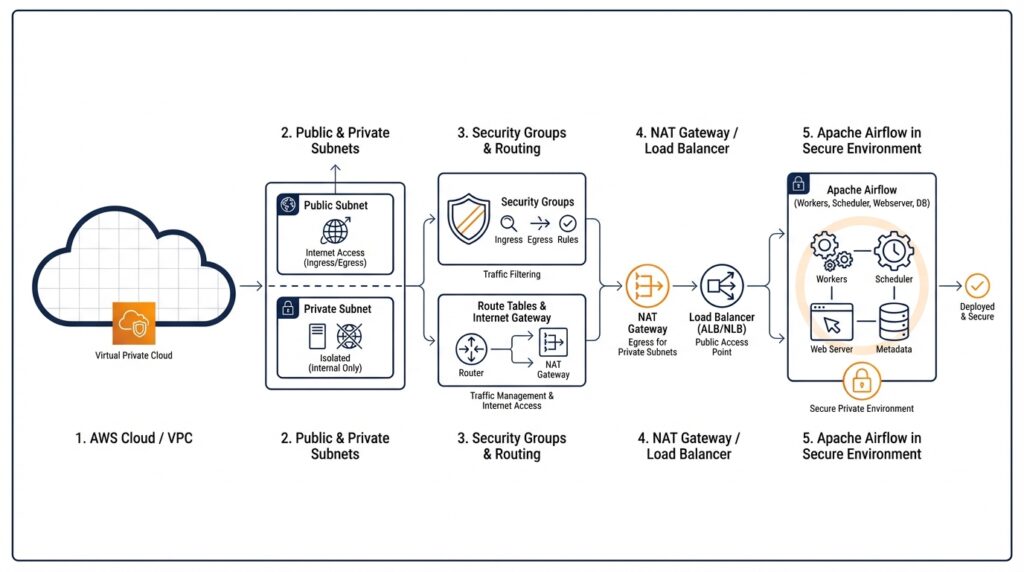
Plan VPC Layout
When you start planning Apache Airflow on AWS, the VPC layout is the quiet decision that shapes everything else. How do we plan a VPC layout for Apache Airflow on AWS without painting ourselves into a corner? Before we touch instances, databases, or the Airflow UI, we need to decide how traffic will move, where private resources will sit, and what part of the environment should ever face the internet. A VPC (virtual private cloud, a logically isolated network in AWS) spans a Region, while each subnet lives in only one Availability Zone and cannot cross zones. That gives us our first design clue: plan for at least two subnets in different AZs so the environment can survive an AZ failure.
The next question is not glamorous, but it saves pain later: how much address space do we reserve? A VPC uses CIDR (Classless Inter-Domain Routing, a compact way to describe IP ranges), and subnet CIDR blocks cannot overlap. AWS allows subnet sizes from /28 to /16, and VPC IP Address Manager (IPAM) is a tool for planning, tracking, and monitoring address space. We want enough room for the Airflow stack now and for growth later, whether that means more workers, extra endpoints, or a larger database tier. Many teams start with a roomy VPC range and then carve it into smaller pieces for each role, because changing an undersized network later is harder than leaving breathing room from the start.
Once the address space is set, we draw the traffic boundaries. A subnet reaches the internet only when its route table points to an internet gateway, and each subnet can be associated with only one route table at a time. AWS also recommends private subnets to protect your resources. For Apache Airflow, that usually means keeping the core workload in private subnets and deciding very deliberately which supporting pieces, if any, belong on the public side.
If the workload needs to reach package repositories, external APIs, or other services outside AWS, we usually add a NAT gateway (Network Address Translation gateway, a managed service that lets private instances make outbound connections without accepting inbound internet traffic). AWS says private subnet instances can use a NAT gateway to connect outside the VPC while external services cannot initiate a connection back. That gives us a practical middle ground: the environment stays shielded, but it still has a path for the outbound traffic that Airflow tasks often need.
If you want the layout to stay fully private, VPC endpoints become the missing doors in the wall. Amazon MWAA says that an Amazon VPC without internet access needs VPC endpoints for the AWS services it uses, including Amazon S3, CloudWatch Logs, Amazon SQS, and AWS KMS, and it recommends selecting two private subnets in different Availability Zones when you attach them. In plain language, that means we stop thinking about the internet as the default exit and instead give private subnets specific, service-by-service paths to the AWS tools they need.
Once we sketch those pieces on paper, the VPC layout starts to feel less like a maze and more like a map. We know where the IP space begins and ends, which subnets belong in which AZs, which route table serves each subnet, and whether outbound traffic will flow through a NAT gateway or stay inside private routing with VPC endpoints. For Apache Airflow on AWS, that early clarity matters because every later decision inherits this foundation, and a thoughtful network now makes the deployment calmer and safer later.
Create Private Subnets
Now that we have the map, we can start carving out the quiet corners where the workload will actually live. When you create private subnets for Apache Airflow on AWS, you are drawing the boundary that keeps the core services out of direct internet reach while still giving them a place to operate. A private subnet is just a subnet with no direct route to an internet gateway, which means traffic cannot walk in from the public internet the way it can in a public subnet.
The first step is to carve those subnets from the VPC range we planned earlier. Think of the VPC CIDR block as a large loaf of bread and each subnet as a slice reserved for a specific purpose, such as one Availability Zone for the scheduler and another for workers or supporting services. We want each private subnet to have its own non-overlapping CIDR block, and we want the sizes to leave room for growth so we are not squeezing Airflow into a network that feels too small six months later.
From there, we create one private subnet in each Availability Zone we plan to use. This matters because high availability is not a bonus feature here; it is part of the design, and matching private subnets across zones gives us a cleaner path to failover if one zone has trouble. It also keeps the layout easy to reason about: the same type of workload sits in the same kind of subnet, just in a different zone, like twins living in two different neighborhoods.
What makes these subnets private is not the name we give them; it is the route table attached to them. A route table is the rulebook for where network traffic is allowed to go, and the private subnet should use a route table that does not point straight to an internet gateway. If the Airflow environment needs outbound access, we send that traffic through a NAT gateway, which acts like a one-way doorway for private instances, or we use VPC endpoints for AWS services when we want to keep traffic inside the AWS network altogether.
This is also the moment to keep the rest of the picture in view. A private subnet does not protect anything by itself; it only gives us the right place to start. Security groups, which act like instance-level firewalls, still decide which traffic each component can accept, so the subnet and the security group work together like a building’s address and its locked doors. For Apache Airflow on AWS, that combination is what helps the scheduler, workers, and metadata database stay reachable only in the ways we intend.
As we create private subnets, it helps to name them in a way that tells the story later, such as by environment, purpose, and zone. Clear names make it easier to spot whether a subnet belongs to production or testing, and they save time when you are checking route tables, attachments, and IP ranges under pressure. Once those subnets exist and their route tables are in place, we have the secure foundation needed to place Airflow’s moving parts into the network and connect them without exposing more than we mean to expose.
Set Route Tables
Now that the private subnets exist, the next question is where their traffic should go. How do we set route tables for Apache Airflow on AWS without accidentally opening a private subnet to the internet? This is the moment where the network starts behaving like a story with clear rules: each subnet must be associated with a route table, a subnet can have only one route table at a time, and if we do nothing, the subnet inherits the main route table by default. That means route table choices are not paperwork; they are the traffic laws for the whole Airflow environment.
Think of a route table as the signpost at a crossroads. If a subnet’s route table has a path to an internet gateway, AWS treats that subnet as public; if it does not, AWS treats it as private. The subnet name does not create privacy by itself, and that is an important beginner-friendly detail to hold onto. In AWS, the route table is what decides whether a subnet can reach the public internet directly or stays tucked inside the VPC.
So when we set route tables for Apache Airflow on AWS, we usually keep the private subnets on a custom table that has only the routes we truly want. The table always has the local VPC route for internal communication, and then we add an outbound path only if the workload needs one. If Airflow workers need to reach package repositories, external APIs, or other services outside AWS, we send that traffic through a NAT gateway, which lets resources in a private subnet connect outward while blocking unsolicited inbound connections.
What if we want the environment to stay fully private? Then we take a different path and give the subnet specific service doors instead of a general internet exit. Amazon MWAA says an Amazon VPC without internet access needs VPC endpoints for the AWS services it uses, including Amazon S3, CloudWatch Logs, Amazon SQS, AWS KMS, and CloudWatch metrics. In that design, Airflow talks to the AWS services it needs through private connectivity, so the route tables never need to point private traffic at the public internet at all.
This is also where the earlier Availability Zone planning starts to pay off. AWS lets multiple subnets share the same route table, so we can keep the policy consistent across the private subnets we placed in different zones. That flexibility is useful because it keeps the architecture readable later, when we are checking associations under pressure and trying to understand why one subnet behaves differently from another. In practice, clear naming helps, but the route table association is the real decision that matters.
Once the route tables are set, the rest of the network feels less mysterious. We know which subnet can talk internally, which subnet can reach out through a NAT gateway, and which subnet stays fully private behind VPC endpoints. For Apache Airflow on AWS, that clarity is the payoff: the scheduler, workers, and supporting services can move only along the paths we intended, and the VPC starts acting like a well-marked map instead of a guessing game.
Add Security Groups
Now that the route tables are doing their job, we can add the security groups that decide who may actually knock on the door. A security group is a VPC-level virtual firewall for an instance, and it is stateful, which means return traffic is allowed automatically once a connection is approved. In Amazon MWAA, you can attach one to five security groups, and those groups must belong to the same VPC as the subnets that host the environment. That makes security groups the next layer of the Apache Airflow on AWS network story: route tables choose the path, and security groups decide whether traffic may enter or leave at all.
When you’re wondering how to add security groups for Apache Airflow on AWS, the safest starting point is not the default group that comes with the VPC. New groups begin with outbound access allowed and no inbound access, which is better than accidentally opening too much, but MWAA still expects you to configure the rules that match your routing model. AWS also recommends creating only the minimum number of groups you need, because one group per role or concern is easier to reason about than a single sprawling rule set.
For MWAA, the example pattern is a self-referencing security group: the group allows traffic from itself, and outbound traffic is set to all destinations. That sounds unusual until you picture the environment talking to itself, like a team passing notes around the same office rather than calling strangers outside. AWS also documents narrower variants that focus inbound access on port 443 for the web server or port 5432 for the Aurora PostgreSQL metadata database, which helps when you want to tighten the surface area without breaking the environment.
If your Airflow setup still needs to reach package repositories, external APIs, or AWS services through a NAT gateway, the security group has to allow that outbound flow too. On Amazon MWAA, AWS explicitly notes that you configure inbound and outbound rules to direct traffic on your NAT gateways, and if you’re using private routing without internet access, VPC endpoint policies join the picture as another control layer. In plain language, the route table says where the road goes, the security group says which vehicles may pass, and the endpoint policy says which service destinations are permitted once you stay inside AWS.
As you add the group, give it a name that tells the story later, because AWS lets you create a new group from scratch or copy an existing one, and the copied group keeps the same rules and VPC. That is handy when you want a production-like pattern in a new environment without rebuilding every rule by hand. For Apache Airflow on AWS, clear names such as mwaa-web-and-workers or mwaa-metadata-db make it much easier to see, at a glance, which door protects which part of the stack.
Once the security group is attached, we have a smaller, calmer network surface: the environment can talk along the routes we’ve chosen, and nothing else gets in by accident. That combination of private subnets, deliberate route tables, and tightly scoped security groups is what turns Amazon MWAA from a loose collection of AWS resources into a controlled Apache Airflow on AWS deployment. Next, we can connect the remaining pieces with the confidence that the doors are locked before anyone moves in.
Configure VPC Endpoints
By the time we reach VPC endpoints, the Airflow network has already learned some discipline: private subnets keep the workload tucked away, route tables decide the roads, and security groups decide who can enter. But a private Apache Airflow on AWS setup still needs a few carefully chosen doors so it can talk to AWS services without opening the whole environment to the internet. If you’re wondering how to configure VPC endpoints for Apache Airflow on AWS, the answer is to create private paths in the same Region and VPC so Amazon MWAA can reach the services it depends on.
In an Amazon VPC without internet access, AWS says Amazon MWAA needs endpoints for the services it uses, including Amazon S3, CloudWatch metrics, CloudWatch Logs, Amazon SQS, and AWS KMS. Think of these endpoints as service-specific hallways: Airflow can deliver files to S3, send messages to SQS, write logs, and use encryption keys, all without walking out to the public internet. That matters most when your DAGs, logs, and metadata all have to stay inside private routing.
The setup is not only about creating the endpoints; it is also about placing them correctly. AWS requires the endpoints to have private DNS enabled, to be associated with the environment’s two private subnets, and to use the environment’s security group. AWS also recommends endpoint policies that allow the environment’s AWS services to work, and the S3 endpoint policy must allow bucket access. In practice, this means the endpoint should feel like it belongs to the same neighborhood as the rest of the stack, not like an outsider dropped into the VPC.
There is one more useful surprise when you choose private network access for the Airflow webserver. Amazon MWAA creates interface endpoints for the webserver and the Amazon Aurora PostgreSQL metadata database, and it places them in the Availability Zones mapped to your private subnets. AWS also notes that you need permission to create VPC endpoints for this mode. So if the web UI is meant to stay private, MWAA helps build part of the path for you; your job is to make sure the surrounding VPC has the rest of the service endpoints it needs.
How do you reach the private webserver from your laptop once everything is sealed up? AWS recommends using a mechanism such as an AWS Client VPN and, when possible, keeping that access path in the same VPC, with the same security group and private subnets as the MWAA environment. That gives you a clean mental model: your browser does not need the public internet to reach Airflow, but it still needs a deliberate private route into the VPC. This is the point where VPC endpoints stop being abstract and start behaving like the front desk for a building with no public lobby.
Once the endpoints are in place, the network starts to feel calm. The private subnets keep their promise, Airflow can still reach S3, logs, queues, and encryption services through private connectivity, and the webserver path stays tied to the VPC instead of the open internet. That is the real value of VPC endpoints in an Apache Airflow on AWS design: you preserve the private boundary without forcing Airflow to lose access to the AWS services it needs to function.
Launch MWAA Environment
How do you launch an MWAA environment without undoing the network design you just built? This is the moment where the plan turns into a real Apache Airflow on AWS deployment. In the Amazon MWAA console, you start by choosing Create environment, picking your AWS Region, giving the environment a unique name, selecting an Apache Airflow version, and pointing MWAA at the S3 bucket that holds your DAG code and optional plugins, requirements, and startup script files. If you leave the version blank, the current docs say MWAA uses the latest available release, which is Apache Airflow v3.0.6.
The networking step is the one that quietly locks the whole house into place. When you choose your VPC, MWAA automatically fills in two private subnets from that VPC, and those subnets must live in two different Availability Zones. That detail matters because the VPC cannot be changed after the environment is created, so this is the point where we confirm the foundation is the right one before we commit. If you are building a launch MWAA environment workflow, this is the moment to slow down and verify the VPC, subnet layout, and zone coverage one more time.
Next comes the choice that decides how people will reach the web UI. Amazon MWAA offers private network access, which limits the Apache Airflow UI to users inside your VPC who also have the right IAM permissions, and public network access, which allows the UI to be reached over the internet by authorized users. If you choose private access, AWS says you need permission to create VPC endpoints and a separate mechanism to reach the webserver from inside the VPC, such as a VPN or bastion-style path. That keeps the launch MWAA environment aligned with the private routing model you planned earlier.
Security groups come next, and they behave like the locked doors on the building. MWAA can create a new security group for you, or you can attach up to five existing groups, but they all must belong to the same VPC as the subnets. AWS also notes that existing groups need the correct inbound and outbound rules already in place, so this is not the place to improvise. In the same section, you also choose the execution role, which is the IAM role, or identity, that MWAA uses to operate the environment.
From there, the rest of the launch is about sizing and finishing the environment with enough room to breathe. You choose an environment class, worker limits, web server scaling values, encryption settings, and logging options, and AWS recommends starting with the smallest environment class that can still support your workload. If everything looks right on the review screen, you create the environment and wait; AWS says the build usually takes about twenty to thirty minutes. That waiting period can feel long, but it is really MWAA assembling the scheduler, webserver, workers, and supporting services in the background.
If your design uses private routing, there is one last checkpoint to keep in mind as the environment moves from creating to available. AWS says a private Amazon VPC without internet access needs VPC endpoints for the services MWAA uses, including Amazon S3, CloudWatch Logs, CloudWatch Monitoring, Amazon SQS, and AWS KMS, and those endpoints should be created in the same VPC with private DNS enabled and the two private subnets selected. That is what lets Amazon MWAA keep talking to AWS services without stepping outside the private boundary.
Once those pieces are in place, the launch stops feeling like a form submission and starts feeling like an arrival. You have told MWAA which VPC to live in, which subnets to use, how the web UI should be reached, which doors to trust, and which AWS services it can speak to privately. At that point, the Amazon MWAA environment has the network identity it needs, and we can move on knowing the foundation is doing its job.